
Watermark capture · Free pinning · Annotation tools

, all in one step

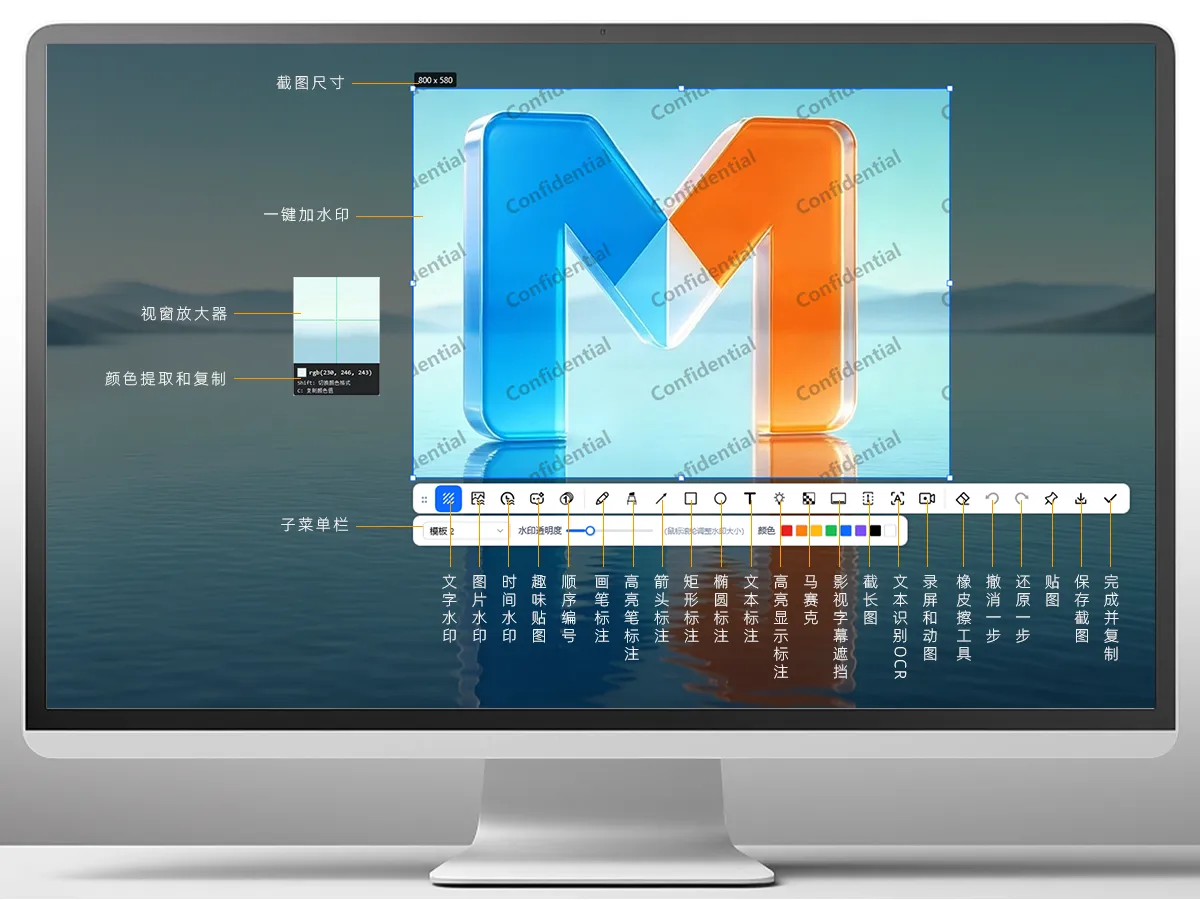
Add text, image logo or date/time watermarks straight onto your screenshots, batch watermark existing images, and overlay sequence numbers, brush strokes and text annotations, plus emoji and stickers. Also supports standalone capture on desktop, long screenshots and online text recognition (OCR).
Version: V2.0.8 · Updated: 2026-09-13
MarkPic illustrated guide
3 types of watermarks
Text / image / date
Completely free
Use 40+ core features for free
Text recognition
Extract text from images
Quick install
Seamless, high-speed updates to new versions
Watermark capture · Keep your information safe

Three kinds of watermarks to protect your originality

Freely combine text, logo image and date/time watermarks, adjusting color, opacity, size and tiling to your taste; you can even batch watermark and export an entire folder.

  • Three kinds of watermarks: text / image / date and time
  • Tiled / single / 3x3 grid positions
  • Batch watermarking makes image delivery worry-free
Watermark capture
Batch watermarking · Boost your efficiency

Batch watermarking, fast bulk processing

Add multiple image files or pick a folder, and MarkPic will automatically apply your own custom watermark to all of them exactly the way you want — no more watermarking one image at a time.

  • Too many images? No problem — one click handles them all!
  • Need different watermarks? Set them up once and it handles the rest automatically.
  • Saved as a backup, leaving your original files untouched.
Batch watermarking
Free pinning · A whole new way to display

Pin images freely onto your screen

Pin images and image files onto your screen like sticky notes with one click, drag them anywhere for reference, and compare content faster than ever.

  • Press F3 by default to pin an image to the screen in one click — pin as many as you like
  • Images can be freely moved, resized and placed anywhere
  • Manage pinned images in bulk, saving time and effort
Free pinning
Free annotation · Give your images focus

A full range of annotation tools — mark it any way you like

Pencils, highlighters, arrows, numbers, spotlight, mosaic — a full row of annotation tools always within reach, in solid, dashed or rounded styles; numbering auto-increments with a click, spotlight highlights what matters, and mosaic blurs sensitive content in one click.
  • Pencil / highlighter / arrow / rectangle / ellipse / text
  • Multiple numbering, spotlight and mosaic tools
  • Drag the anchors of text annotations to resize and rotate
Screenshot annotation tools
Smart capture · Anyone can do it

One-click lightning capture with smart snapping to elements

Press F1 by default to launch capture instantly, with automatic detection of windows and page elements — wherever the cursor goes, it snaps, aligning edges perfectly in one go.
  • Window / control-level smart snapping
  • Freely select, drag and move
  • Click to capture the full screen; hold Shift for a square selection
  • Magnifier color picking, with one-click RGB / HEX copy
Smart snap capture
Screenshot history · An undo button for your captures

Screenshot history brings lost captures back

Forgot to save a screenshot at home or at work, and can never find it again? No worries — with screenshot history, your captures never get lost!

  • Manage everything freely and keep the material that matters
  • All images stay on your device, so your privacy never leaks
  • Every screenshot is a memory too
Screenshot history
Fun stickers · A whole new way to screenshot

Put stickers and emoji right on your screenshots

Want to put your mood into a screenshot? Happy, excited, thumbs-up... or sometimes a little sass — let fun stickers show exactly how you feel!

  • We have plenty of fun stickers to choose from
  • Stickers can be freely moved, resized and placed anywhere
  • Manage pinned images in bulk, saving time and effort
Fun stickers
Doodle / Present / Whiteboard · More possibilities for productivity

Doodle on screen and annotate your slides

Need to present a PPT, a courseware deck or a tutorial to others? Doodle / Present / Whiteboard lets you freely display your annotations on screen, so others can follow your lead and listen with ease!
  • Once you finish drawing, one click switches you back to controlling the screen
  • Choose freely from a variety of annotation tools
  • Clear annotations in one click to work faster
Smart snap capture
Long screenshots · Text recognition · Screen recording

Long images / text recognition / screen recording are all a breeze

Auto-scroll to stitch ultra-long web pages and chat histories with live preview; pull Chinese, English and handwritten text out of screenshots into plain text with one-click OCR; and yes — it records your screen too!

  • Scrolling long screenshots with live stitch preview
  • Offline OCR that handles Chinese / English and handwriting
  • Record on-screen visuals and motion
Long screenshot and OCR examples
Subtitle cover · Probably a world first

Learning a language from shows, and still covering subtitles with a book?

Probably a world-first design feature — great news for anyone sharpening listening skills with foreign-language movies and series. No more covering your screen with slips of paper or books!

  • Freely resize and move
  • Does not affect the video picture
  • Cover subtitles to learn languages more efficiently
Subtitle cover
More features

One tool covering the entire screenshot workflow

Beyond the headline capabilities above, there are these thoughtful touches too.

Pin image on top

Pin screenshots to your screen, then zoom, flip and adjust opacity.

Color Picker & Magnifier

Pixel-level magnified color picking, with one-click RGB/HEX copying.

Change theme

Freely change the color theme to give your tools a sharper look.

Right-click in File Explorer

Just right-click an image for "Add watermark / Pin with MarkPic".

Custom shortcuts

Customize hotkeys for capture, pinning and more.

Multi-language interface

Switch between multiple languages at will — built for a global audience.

Auto-save

Screenshots can be set to auto-save to a folder of your choice.

Instant response

Always in the system tray — press a hotkey and the frame appears instantly.

Download MarkPic now

Up and running in seconds — capture, watermark and annotate in one smooth flow. Free for personal use, long term.

MarkPic v2.0.8Updated 2026-09-13
Windows 10 / 11 (64-bit)
Reasonable file size
Includes all runtime dependencies — ready to use out of the box
⬇ Download now View previous versions →
FAQ

You might be wondering

Which systems does MarkPic support?

Supports Windows 10 and Windows 11 (64-bit); just double-click to run after downloading.

What's the difference between the free version and Pro?

Core features such as capture, annotation, three types of watermarks, long screenshots and pinned images work in the free version; advanced capabilities like OCR text recognition and batch watermarking require Pro.

How do I activate Pro?

After purchase you will receive an activation code tied to your email. Enter it in "Settings → About" to unlock it — buy once, use it for years to come.

Will watermarks affect image clarity?

No. Watermarks are rendered as an overlay, so the original pixels stay untouched, and both opacity and size are fully adjustable.

What if a long screenshot comes out incomplete or has duplicates?

Scroll slowly and steadily, keeping an eye on the live preview. If you see a "Scrolling too fast" prompt, scroll back a little and it will pick up again.